

Why Does My Sound System Keep Clipping?
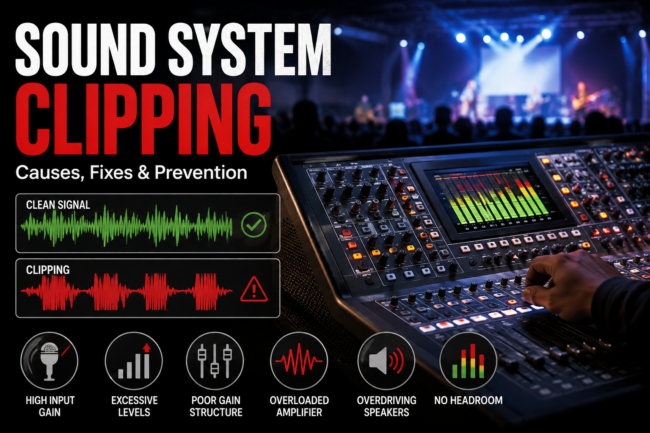
Your sound system is clipping when an audio signal becomes too strong for part of the signal chain to handle, causing the waveform to be cut off or distorted.
The result can sound like:
- Harsh vocals
- Crackling
- Distorted music
- Aggressive or gritty sound
- Loss of clarity
- Sudden distortion when someone sings or speaks loudly
The most common cause is excessive signal level, but clipping can happen at several different points in a sound system.
A microphone can clip at the input. A mixing console can clip. A processor can clip. An amplifier can be driven too hard. A digital device can also clip when its input level exceeds its available headroom.
The key to fixing clipping is therefore to find where in the signal chain the overload is happening.
What Is Audio Clipping?
Audio clipping occurs when an audio signal exceeds the maximum level that a device or system stage can reproduce or process correctly.
Imagine a waveform approaching the maximum level that a system can handle.
When the signal stays within that limit, the waveform remains intact.
When it exceeds the limit, the peaks are cut off.
That creates distortion.
In digital systems, clipping can happen when a signal exceeds the available digital headroom. In analogue equipment, excessive signal can also cause saturation or distortion, depending on the equipment and operating level.
Although the technical behaviour differs, the practical warning is similar:
The signal is too hot for that stage of the system.
What Does Clipping Sound Like?
Clipping often sounds noticeably different from a clean signal.
You may hear:
Crackling
Harshness
Distortion
Crunching
Loss of vocal clarity
Flattened or aggressive transients
For example, a singer may sound clean when singing quietly but become harsh or distorted whenever they reach louder notes.
That can indicate that something in the signal chain is running out of headroom.
What Causes a Sound System to Clip?
1. The Microphone Input Is Too High
One of the first places to check is the microphone input on the mixing console.
If the microphone preamp gain is set too high, loud signals from the performer can overload the input stage.
This is particularly common when the gain is set while the performer is relatively quiet and then the performer becomes much louder during the actual performance.
Solution
Set the input gain while the performer is producing a realistic performance level.
Don’t set gain only based on a quiet soundcheck.
A singer should ideally sing at approximately the level they will use during the performance.
2. The Mixing Console Is Clipping
Look at the console’s input and output meters.
If a channel is repeatedly reaching the top of the meter or showing a clip indicator, the signal may be too high at that point.
Check:
- Input gain
- Channel fader
- EQ boosts
- Bus levels
- Main output
- Effects returns
The important distinction is that moving a fader is not always the same thing as fixing excessive input gain.
If the preamp is already overloaded, pulling the channel fader down afterwards may not remove the distortion created at the input stage.
3. Too Much EQ Boost
EQ can also contribute to clipping.
Suppose a vocal channel receives a significant boost in the low midrange or high frequencies.
The boosted signal may become substantially higher than the original input.
Multiple EQ boosts across several channels can also increase the level reaching buses and the main output.
Solution
Use EQ to shape the sound rather than simply making every frequency louder.
If a frequency needs to be reduced, cutting it can sometimes solve the problem more effectively than boosting everything around it.
4. The Main Output Is Clipping
You may have perfectly controlled individual channels but still overload the main output.
This can happen when several channels are combined.
For example:
Vocal + drums + bass + guitars + keyboards + playback
Each individual channel may look acceptable, but their combined level can push the stereo bus too high.
Check the main output meters.
If the main bus is repeatedly clipping, you need to reduce the level somewhere upstream or manage the mix more effectively.
5. A Bus or Group Is Clipping
Many professional mixing consoles allow channels to be routed through groups or buses.
For example:
Drums → Drum Bus → Main Output
or:
Vocals → Vocal Bus → Main Output
The individual channels may appear fine while the bus itself becomes overloaded.
This is why troubleshooting should follow the signal path rather than assuming the microphone is responsible.
6. The Amplifier Is Being Driven Too Hard
Clipping can also occur at the amplification stage.
If the amplifier is being asked to produce more output than it can provide cleanly, it may clip.
This can happen when:
- The system is undersized
- The input level is excessive
- The amplifier is improperly configured
- The system is pushed beyond its intended operating range
However, simply turning down the amplifier does not automatically solve every clipping problem.
The entire signal chain needs to be examined.
7. The Speaker System Is Being Pushed Beyond Its Limits
A speaker can also produce audible distortion when it is driven beyond its practical operating range.
This may be particularly noticeable in the low frequencies when a system is being asked to reproduce more bass than it can comfortably handle.
If the audience keeps asking for more volume, the answer isn’t always to keep increasing the level.
The system may need:
- More appropriate speaker coverage
- Additional subwoofers
- Better system configuration
- Correct crossover settings
- Appropriate amplification
- Better system design
8. Your Playback Device Is Clipping
The problem doesn’t always originate inside the PA.
A laptop, phone, DJ controller, media player or other playback device can send an excessively high signal into the system.
Check the output level of the source device as well as the mixing console.
The signal chain could look like:
Laptop → DI Box → Mixing Console → Processing → Amplification → Speakers
If the laptop or playback device is already sending distorted audio, the sound engineer cannot completely remove that distortion later in the chain.
How Do You Fix Clipping in a Sound System?
Use a systematic approach.
Step 1: Find Where the Clipping Starts
Don’t immediately turn everything down.
Watch the meters and listen carefully.
Check:
Input
↓
Channel
↓
Bus
↓
Main output
↓
Processor
↓
Amplifier
↓
Speaker
The first stage showing excessive level can help identify where the problem begins.
Step 2: Reduce the Input Gain
If the microphone preamp is too high, reduce it.
Then check the signal again.
This is usually more effective than simply pulling down the channel fader if the input stage itself is overloaded.
Step 3: Check Your EQ
Look for large boosts.
If you have boosted several frequencies significantly, try returning the EQ closer to neutral and listen again.
Make changes based on what the system actually needs.
Step 4: Check the Main Bus
If individual channels are healthy but the main output is clipping, look at the overall mix.
You may need to reduce several channels slightly rather than dramatically reducing one channel.
Step 5: Check Processing
Look at:
- Compressors
- Limiters
- EQ
- DSP
- Matrix outputs
- Speaker processors
Incorrect processing settings can create unexpected level problems.
Step 6: Check the Amplifier and Speaker System
If the console levels look healthy but the system still sounds distorted at high output levels, investigate the amplification and loudspeaker stages.
A professional system should be configured so that the equipment works together within appropriate operating limits.
Does Turning Down the Volume Fix Clipping?
Sometimes, but it depends on where the clipping is occurring.
If the amplifier or speaker system is being pushed too hard, reducing the overall output level may help.
But if a microphone preamp is already clipping, turning down the main speaker volume later in the signal chain does not undo the distortion.
This is one of the most important concepts when troubleshooting audio:
Fix the overload where it occurs.
Don’t simply reduce the final volume and assume the problem has disappeared.
Clipping vs Distortion: Are They the Same?
Not exactly.
Clipping is one form of distortion.
Distortion is a broader term describing an unwanted change to an audio signal.
Clipping specifically occurs when a signal exceeds the available level limit and its waveform is cut off.
Other types of distortion can result from:
- Overloaded analogue circuits
- Damaged speakers
- Incorrect processing
- Faulty cables or connections
- Poor equipment configuration
- Excessive mechanical movement
So if your sound is distorted, don’t automatically assume clipping is the cause.
Why Does My Microphone Clip When Someone Sings Loudly?
If a microphone sounds clean when the vocalist sings quietly but becomes distorted during louder sections, check the microphone channel’s input gain.
The preamp may be set too high for the performer’s loudest level.
Ask the vocalist to perform at their loudest realistic level during soundcheck and set the input gain accordingly.
Also check whether:
- The microphone is appropriate for the application
- The microphone is being held correctly
- EQ is adding excessive level
- Compression is configured appropriately
- The channel or bus is clipping
Why Does My Church Sound System Keep Clipping?
Church sound systems can be particularly complex because they may combine:
- Multiple microphones
- Choirs
- Worship bands
- Playback
- Speech
- Stage monitors
- In-ear monitoring
- Streaming
- Recording
- Main PA systems
A clipping problem can therefore originate from several different points.
For example:
Microphone → Console → Bus → Main Output → DSP → Amplifier → Speaker
The correct solution is to identify the stage where the signal becomes excessive.
For a permanent church installation, the system should also be configured around the room, speaker coverage, expected audience and operational requirements.
How Can You Prevent Clipping During a Live Event?
Set gain properly
Don’t run every input as hot as possible.
Leave headroom
A professional system should have enough headroom to accommodate normal changes in performance level.
Watch your meters
Meters are useful early warning indicators.
Soundcheck at realistic levels
Don’t perform a soundcheck at whisper level and expect the system to behave the same way during a loud performance.
Avoid excessive EQ boosts
Large boosts can create unnecessary level increases.
Check buses and outputs
Don’t only watch individual channels.
Know the system’s limits
Every sound system has practical limits.
Use appropriate system design
If a venue requires significantly more output, adding more gain to an undersized system isn’t necessarily the correct solution.
Quick Clipping Troubleshooting Checklist
If your sound system is clipping, check:
1. Microphone input gain
Is the preamp too high?
2. Channel meters
Is a specific channel clipping?
3. EQ
Are large frequency boosts being applied?
4. Bus levels
Is a group or auxiliary bus overloaded?
5. Main output
Is the master bus clipping?
6. Processing
Are compressors, limiters or DSP settings contributing to the problem?
7. Amplification
Is the amplifier being driven beyond its clean operating range?
8. Speakers
Are the loudspeakers being pushed beyond their practical limits?
9. Playback sources
Is the laptop, DJ controller or other source already distorted?
10. System size
Is the sound system appropriate for the venue and audience?
When Should You Get Professional Help?
If clipping continues after basic gain and level adjustments, the problem may require a full system assessment.
Professional assistance is particularly useful when:
- A venue regularly experiences distortion
- A church PA repeatedly clips
- A concert system cannot reach the required volume cleanly
- Speakers distort at relatively moderate levels
- Different engineers experience the same problem
- A permanent AV installation is being planned
- The system has multiple consoles, processors or zones
- You are unsure where in the signal chain the problem occurs
The objective isn’t simply to make the system quieter.
It is to determine why the system is running out of headroom and whether the system configuration is appropriate for the application.
Final Takeaway
If your sound system keeps clipping, don’t assume that the speakers are automatically the problem.
Start at the beginning of the signal chain and find where the level becomes excessive.
Check the microphone input, channel gain, EQ, buses, main output, processing, amplification and speakers.
In many cases, the solution is simply better gain management and system operation. In more demanding environments, the system may require professional tuning, configuration or redesign.
A clean sound system isn’t necessarily the loudest system. It’s a system with enough headroom to deliver the required level without unwanted distortion.
Need Help With Your Sound System?
Royalty Global Sound provides professional sound reinforcement, AV installation, backline supply and technical consultancy for live events, churches, corporate spaces, venues and productions.
If your system is experiencing persistent clipping, distortion or inconsistent output, the RGS team can help assess the signal chain and determine the right solution.
CTA: Talk to RGS About Your Sound System
Related Services: Sound Reinforcement | AV Installation | Technical Consultancy
Related Articles: How to Fix Feedback in a Sound System | What Is Sound Reinforcement? | Line Array vs Point Source Speakers | What Is a Technical Rider?